
Evo, You’re A Firework

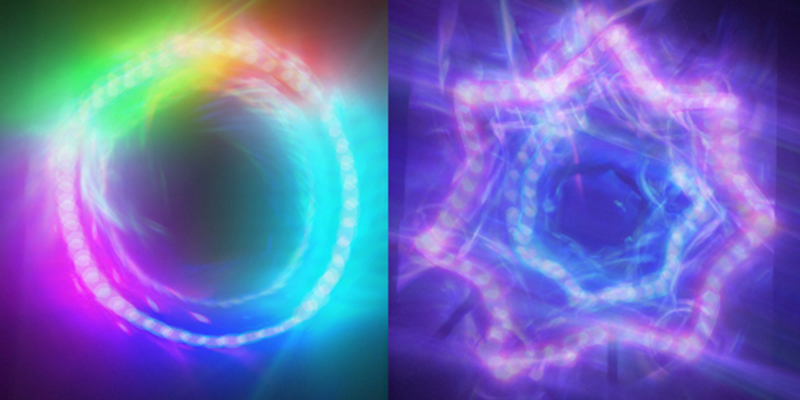
OzoSquad, we hold these truths to be self-Evodent: that all beings—man, woman, and robot—are created equal; that they are endowed with certain unalienable rights, and that among these are life, liberty, and the pursuit of happiness. So help us secure Ozobot Evo’s happiness this Fourth of July! Show your support for STEAM with an Ozobot light art activity.
This simple activity combines art and technology and works with both Evo and Bit. Added bonus: the freedom of expression you’ll display would make Adams, Jefferson, and the rest of our fab Founding Fathers proud.
Ozobot Light Trail Art
Ages 7+
You’ll need:
 2) Download App
 3) Capture Ozobot In Action
 You can find full-length Ozobot light trail lessons here and here. Mrs. Swaidner’s lesson uses markers, lines, and OzoCodes, while Professor Born’s uses OzoBlockly programming.
When you’re done with your light trail art, it’s time for the most important step of all. In the spirit of democracy, share your art with your fellow Americans. Use @ozobot and #EvoUrAFirework. Evo will be monitoring the world wide web for your images all weekend.
Activities adapted from lesson plans created by Melissa Swaidner, an art teacher at Haverhill Elementary, and Ozobot educator extraordinaire Professor Richard Born.
You can find full-length Ozobot light trail lessons here and here. Mrs. Swaidner’s lesson uses markers, lines, and OzoCodes, while Professor Born’s uses OzoBlockly programming.
When you’re done with your light trail art, it’s time for the most important step of all. In the spirit of democracy, share your art with your fellow Americans. Use @ozobot and #EvoUrAFirework. Evo will be monitoring the world wide web for your images all weekend.
Activities adapted from lesson plans created by Melissa Swaidner, an art teacher at Haverhill Elementary, and Ozobot educator extraordinaire Professor Richard Born.
Ozobot Light Trail Art
Ages 7+
You’ll need:
- A tablet or smartphone
- 1 Ozobot (Evo or Bit)
- Paper and markers
- A dark room or space to work in
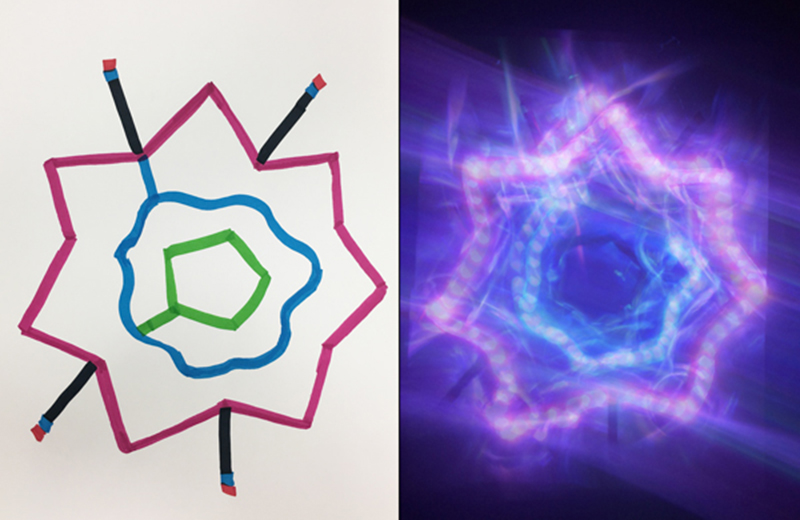
- With white paper and markers, draw colored lines for your Ozobot to follow. Add in some black lines and Color Codes too!
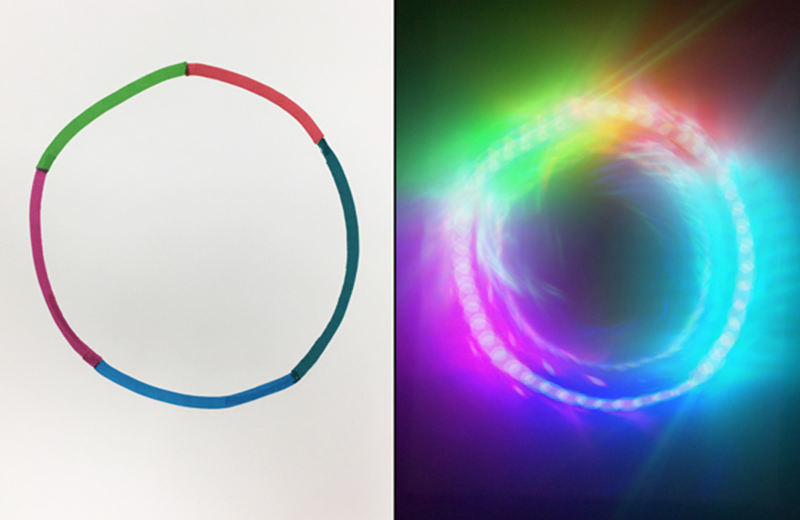
- We started with simple circles of alternating colors. Then, we experimented with fun, firework-inspired shapes.
- Test out the trails with your Ozobot. You may have to adjust turns, or move color codes away from intersections to get it right.
2) Download App
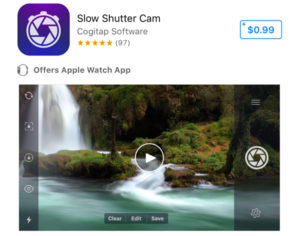
- Download a slow shutter photo app on your smartphone or tablet. “Slow Shutter Cam” costs $0.99 and is one of the best, but there are free options as well.
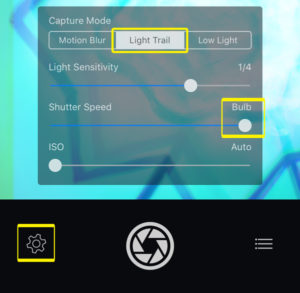
- In “Slow Shutter Cam”, tap the Gear icon to open Settings. Switch Capture Mode to “Light Trail”, and slide Shutter Speed all the way up to “Bulb”. For apps without the “Bulb” option, set Shutter Speed at 0.5.
3) Capture Ozobot In Action
- Find a darkened room or space.
- Calibrate Ozobot on paper. Find tips here.
- Place Ozobot on your light trail. Holding your smart device above it with the slow shutter app open.
- Tap the shutter icon to capture your Ozobot’s light trail.
- Share your creations: @ozobot, #EvoUrAFirework.
You can find full-length Ozobot light trail lessons here and here. Mrs. Swaidner’s lesson uses markers, lines, and OzoCodes, while Professor Born’s uses OzoBlockly programming.
When you’re done with your light trail art, it’s time for the most important step of all. In the spirit of democracy, share your art with your fellow Americans. Use @ozobot and #EvoUrAFirework. Evo will be monitoring the world wide web for your images all weekend.
Activities adapted from lesson plans created by Melissa Swaidner, an art teacher at Haverhill Elementary, and Ozobot educator extraordinaire Professor Richard Born.